Blog Details
- Home
- Blog Details
10
Dec
How to Deposit Money on TaskEarn Using Paytm, PhonePe, or Google Pay (With UTR Number Submission)
Depositing money on
TaskEarn is simple and secure. Follow these steps to recharge your account using Paytm, PhonePe, or Google Pay. After making the payment, you’ll need to submit the UTR number and payment screenshot for verification. Here's a detailed guide:
Steps to Deposit Money
1. Log in to Your TaskEarn Account
- Visit the TaskEarn website in your browser.
- Use your registered email ID and password to log in to your account.
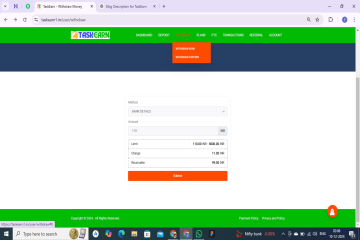
Go to the Deposit(Deposit now) Section
- Navigate to the "Recharge" or "Add Funds" section on your dashboard.
- Select the recharge amount you wish to deposit (e.g., ₹300, ₹600, ₹1200, or more).
3. View Payment Details
- On the recharge page, you’ll see the UPI ID or QR Code for TaskEarn's payment account.
- Note this information or keep the page open for reference.
4. Open Your Payment App
- Open Paytm, PhonePe, or Google Pay on your phone and follow the instructions below:
For Paytm:
- Tap on "Pay" and choose "UPI" or "Send Money."
- Enter the TaskEarn UPI ID or scan the QR code provided on the recharge page.
For PhonePe:
- Select "To UPI ID" or "Scan QR Code" and enter the TaskEarn UPI ID or scan the QR code.
For Google Pay:
- Tap "Pay to UPI ID" or "Scan QR" and enter the UPI ID or scan the code.
5. Complete the Payment
- Enter the recharge amount you selected on TaskEarn.
- Add a remark (e.g., "TaskEarn Recharge") for clarity.
- Confirm the payment and enter your UPI PIN to process the transaction.
- After the payment is successful, note down the UTR Number (Unique Transaction Reference Number) from your payment confirmation.
6. Return to the Recharge Page
- After making the payment, go back to the Recharge section on the TaskEarn website where the UPI ID and QR code were displayed.
- You will find an option to Submit Payment Details.
7. Submit UTR Number and Screenshot
- Enter the UTR Number you received after completing the payment.
- Upload the screenshot of the payment confirmation from your payment app.
- Click Submit to send your payment details for verification.
8. Wait for Payment Verification
- The TaskEarn team will review your UTR number and screenshot.
- Once verified, the recharge amount will be credited to your account.
- You’ll receive a notification on your dashboard once the process is complete.







)